



|
BoxCast Streaming BoxCast Flow BoxCast Spark Broadcaster App BoxCast Producer Third-Party Encoders |

|
BoxCast RemoteMix Compatible Mixers Mixing Station Works with BoxCast RemoteMix |

|
BoxCast OTT Apps |
|
|
BoxCast Streaming BoxCast Flow BoxCast Spark Broadcaster App BoxCast Producer Third-Party Encoders |
|
|
BoxCast RemoteMix Compatible Mixers Mixing Station Works with BoxCast RemoteMix |
|
|
BoxCast OTT Apps |
Broadcasting, How To Live Stream
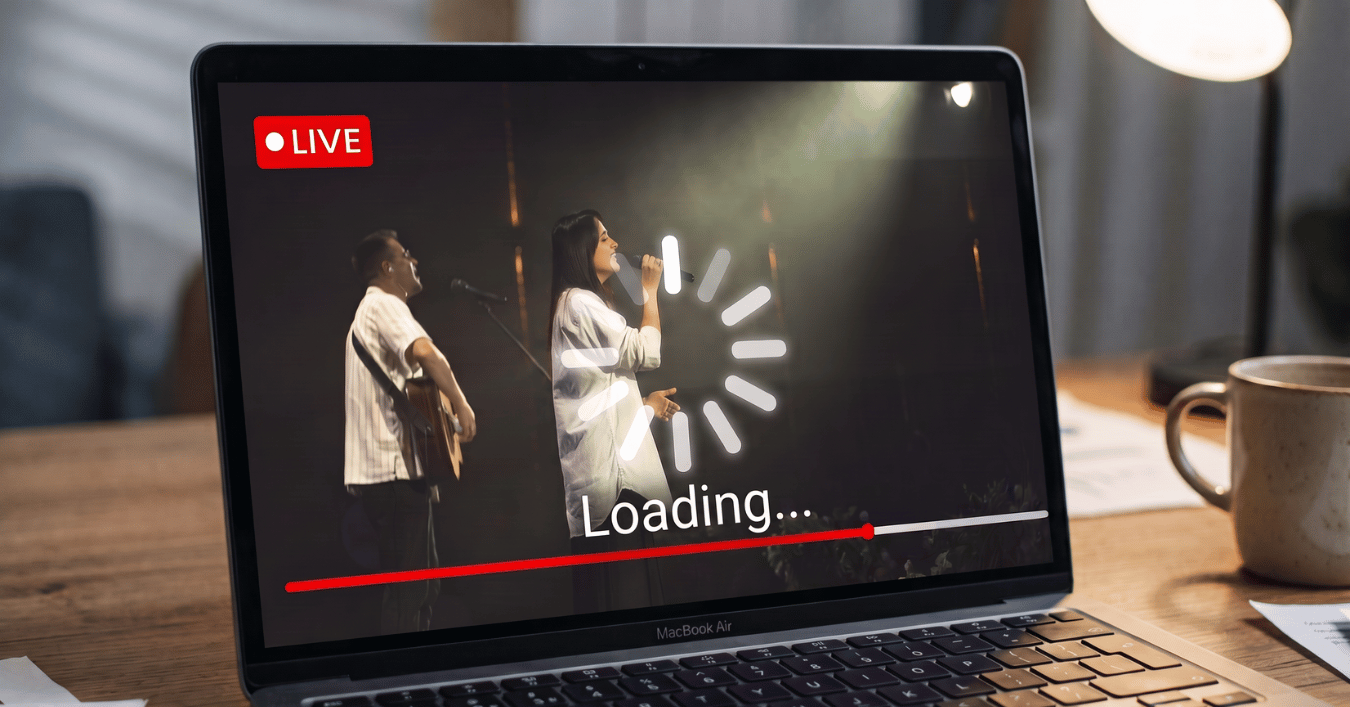
It's 9:58 am on a Sunday morning, two minutes before your 10:00 am service starts. The countdown is running, your worship team is in place, and someone in the booth just asked a question no tech director wants to hear: "Hey, what’s wrong with the live stream?"
If you've experienced this hypothetical in real life, you're unfortunately in good company. Our team at BoxCast powers tens of thousands of live streams every week, so our support team has seen it all, as you can imagine. Most streaming problems actually have a clear cause and a pretty manageable fix, though. That’s why we decided to put together this content, to walk you through some of the most common streaming missteps. In fact, a few came up so often that we got tired of hearing about them and built the fix right into the product.
This guide is organized by symptom, so you (or your newest volunteer) can jump straight to whatever's going wrong. Each section covers what you'll notice, why it happens, and how to fix it. So without further ado, let’s get into it!
Live stream buffering or dropping frames
Live stream audio too quiet (but the room sounds great)
Live stream won't start or the encoder acts up
No ethernet access at an off-site venue
Pixelated or blocky background on your live stream
Final Thoughts
You picked a great camera, set the stream to match it, and for the first 10 minutes everything looked fantastic. Then the picture started stuttering, smearing, or freezing outright.
What you'll notice: buffering wheels, choppy motion, frozen frames, or video that suddenly goes soft and blurry.
Why it happens: your stream is asking for more upload speed than your network can consistently deliver. Maybe you're streaming in 4K from a 4K camera, or 1080p from a 1080p camera. That's a great setup when the network cooperates. But if the encoder is locked to that bitrate and your upload speed dips, even for a few seconds, the stream can't keep up and so frames get dropped and viewers start experiencing annoying buffering.
When our support team digs in, this issue almost always comes down to upload speed, or a network bottleneck. Though download speed is the number your internet provider likes to brag about, upload is what your stream actually uses, and it's often much lower. On top of that, an overwhelmed switch or a guest Wi-Fi network full of a sudden influx of devices during an event can quietly eat the bandwidth your encoder needs.
How to fix it: start by testing upload speed at the encoder, at service time. A Tuesday afternoon speed test in an empty building won't tell you much about Sunday morning. BoxCast Spark can run one right on its touchscreen. As a rule of thumb, look for about double your stream's bitrate in upload speed, so a 6 Mbps stream wants around 12 Mbps of upload.
Next, hardwire and isolate the encoder. Use ethernet when you can, and keep your stream off the guest Wi-Fi. If your IT setup allows it, a separate network or VLAN for production gear helps a lot.
The biggest fix, though, is actually adaptive bitrate streaming. It runs your stream at the highest quality your network can support in the moment and scales down progressively when it can't. Your stream might slide from super crisp HD to regular HD for a minute, but it stays live and your video maintains the smooth flow your viewers expect. BoxCast Flow, our patented streaming protocol, does this automatically through something called link quality adjustment. It lowers your outgoing bitrate to ride through rough patches, raises it again when your connection settles, and resends lost data to fill in the gaps.
Your sound tech nailed it. The vocals sit right on top of all instruments, the band still sounds full, and nobody in the room is covering or straining their ears. Meanwhile, online viewers have their volume cranked all the way up and still can't make out any of the spoken word of the stream. What gives?
What you'll notice: stream audio that's quiet, thin, or lopsided, usually with vocals way out front and barely any band. Or sometimes, there's no audio at all.
Why it happens: a room mix is almost always built for the room, and this mix is then sent over to the stream, untouched. Drums, guitar amps, and stage monitors are already loud in the space on their own, so the board only sends what the room needs to fill in the gaps. Your stream can't hear any of that acoustic sound. It only gets what comes out of the board, so it ends up quieter and less balanced than what people in the seats experience.
How to fix it: build a separate stream mix. Use a separate bus to send a mix made for online listeners instead of a copy of the room mix. Then mix it on headphones. You can't always best judge a stream mix while the room is blasting in your ears, and a decent pair of closed-back headphones tells you what viewers actually hear. Spark even has a headphone output built in for this.
Next, bring the level up. Online listeners shouldn't have to max out their volume. Watch your encoder's audio meters and push the stream mix until it's full and healthy without clipping. If your console or a plugin can measure loudness, many engineers aim for somewhere around -16 to -14 LUFS for streamed content. In a pinch, digital gain in BoxCast can give you a quick bump, but a dedicated stream mix is the real fix.
It also helps to mix from somewhere quieter where you can really focus on how the stream sounds. BoxCast RemoteMix lets a volunteer or engineer control your digital mixer from a browser, so they can build the stream mix in a quiet room down the hall (or from home) without touching what the room hears.
No audio at all? Check the simple stuff first: the encoder's audio input source (embedded with the video or analog from the board), whether the aux or matrix feeding the stream is muted, and whether the cable is in the right jack.
Blown-out audio instead? The opposite problem almost always comes down to one mic set too hot. Choir mics and drum mics are the usual suspects. Pull them down in the stream mix so they don't flatten everything else.
There's a special kind of dread that comes from powering on your encoder 15 minutes before service and watching an update progress bar crawl across the screen.
What you'll notice: an encoder that won't connect, won't go live, throws an error, or works perfectly one week and not the next.
Why it happens: the most common culprit is updates. Some encoders and streaming apps need firmware or software updates to keep running well (or at all), but they only check for them when they're powered on. If the device sits unplugged all week, it may decide to start a long update right before your event. Other usual suspects include a dropped network connection, a loose HDMI or SDI cable, or a camera sending a video format the encoder doesn't support.
How to fix it: leave the encoder plugged in and online between events. That way updates happen on a quiet Wednesday, not five minutes before you go live (as long as your encoder or provider offers automated updates). At the very least, power on 30 to 60 minutes early, so you catch problems while there's still time to fix them.
It also helps to schedule the broadcast ahead of time. When the encoder starts and stops on a schedule, nobody has to remember to hit "go live" in the middle of everything else. And a good platform should flag what's wrong on your dashboard instead of leaving you to guess.
This is a big part of why we built Spark the way we did. Spark updates its firmware automatically whenever it's powered on and connected, and BoxCast holds off on updates when a broadcast is scheduled within the next hour. Just leave it plugged in. If something does go wrong, Spark's touchscreen shows a live preview of your feed, its LED ring shows status at a glance (green when it's ready, red when you're live), and BoxCast's stream monitoring and diagnostics help you pinpoint what's going on.
At your home venue, you know which network ports work, which ones don’t, and which one is hiding behind a piece of furniture or is located in a random nook of a room. Then someone asks you to stream a wedding, a conference, or an away game in a building you've never set foot in.
What you'll notice: the encoder won't connect over ethernet, or there's no port you're allowed to use, and nobody on site knows who to ask.
Why it happens: other venues have their own networks and their own rules. Ports might be disabled, firewalls might block streaming traffic, or the only option might be a public guest network. And the one person who could fix it is rarely in the building at 7 a.m. on a weekend.
How to fix it: ask early, if possible. Reach out to the venue a week ahead and ask for a wired connection, the expected upload speed, and any firewall restrictions you should know about. It also helps to know what your gear needs. BoxCast Flow is built so firewalls and traffic shapers can't single out your stream based on known streaming protocols, and Spark doesn't need any firewall configuration. That won't help if the port is switched off entirely, though.
Next, have a backup connection ready. Spark supports dual-band Wi-Fi as well as ethernet, so a private Wi-Fi network (ideally not the public guest one) can carry your stream in a pinch. A cellular hotspot, or even your phone's hotspot, works too. Speeds vary a lot by location, so test before the doors open, and drop from 1080p to 720p if the connection is tight. BoxCast Flow will also adjust on its own when things get rough. Ethernet is still our first choice for stability, but Wi-Fi gets the job done when it's all you've got.
Keep the BoxCast Broadcaster app in your back pocket, too. It lets you go live straight from an iPhone or iPad, which makes it a great last-minute option when nothing else is cooperating.
Finally, record a local backup. Pop a microSD card into Spark so you have a full-quality recording even if the connection drops, and post it after the event. Spark can also run on USB-C power from an external battery, which helps when outlets are hard to come by.

Your speaker looks great on the stream, but the wall behind them looks like it was rebuilt in Minecraft.
What you'll notice: blocky, smeary, or crawling patches in the background, especially in haze, on LED walls, or in the darker corners of the stage.
Why it happens: video encoders save bandwidth by sending only what changes from one frame to the next. Haze, LED walls, and moving lights change constantly across huge parts of the picture, so the encoder spends a lot of its bitrate just keeping up with them. That leaves less for the parts that matter, like faces. Low light makes it worse, because cameras add grainy noise in the dark, and noise looks like constant change too. Lower-quality cameras tend to struggle the most.
How to fix it: calm the stage down during streamed moments. A light, even haze reads better on camera than thick clouds rolling across the stage, and a slower LED loop or a still image during the sermon is much easier to encode than fast-moving content.
Then add light and frame tighter. More light on stage means less camera gain and less noise. A tighter shot means less busy background, so more of your bitrate goes to the person talking.
If you're still fighting it, look at your gear. A camera that handles low light well makes a real difference. So does an HEVC (H.265) encoder like Spark, which can deliver similar quality at roughly half the bitrate of H.264.
Copy this, print it, perhaps even tape it to the booth wall so your newest volunteer can find it. It's the fastest way we know to turn "the stream is broken" into "oh, it's probably the aux send."
@2x.png?width=524&height=655&name=Pre-stream%20checklist%20(1080%C3%971350)@2x.png)
If something goes wrong mid-stream
| If you see or hear... | Check this first |
|---|---|
| Buffering or choppy video | Upload speed, other network traffic, and whether adaptive bitrate is on |
| Buffering for only one viewer | Their internet connection |
| Soft or blurry video all the time | The encoder’s quality setting |
| Stream audio too quiet | Stream mix level, then digital gain |
| No stream audio at all | Encoder audio input, aux or matrix mute, and the cable |
| Distorted or blown-out audio | Choir and drum mic levels in the stream mix |
| Pixelated background | Haze, LED wall motion, and stage lighting |
| Encoder offline | Network cable or Wi-Fi, then power cycle |
| Still stuck | Switch to a backup (Wi-Fi, hotspot, or Broadcaster app) and contact support |
After the stream
Live streaming has a lot of moving parts, and eventually something will go sideways. When it does, it helps to know that most problems trace back to a short list of causes: bandwidth, the mix, the encoder, the network, or what's happening on stage.
A good streaming provider should have already thought through those problems for you, with things like adaptive bitrate, automatic updates, and backup connection options built in. And when something weird comes up anyway, you should be able to reach a real person. At BoxCast, our support team is available by phone, chat, and email.
Honestly, the fewer surprises there are in the booth, the more likely your volunteers are to come back next week.
Want a booth team that stays calm when the stream hiccups? Join Todd Elliott, founder of the FILO Conference and former Technical Arts Director at Willow Creek Community Church, for our webinar on volunteer leadership


